
For members
Fixing an entry
Ask to add a missing entry, correct a wrong one or remove one that isn't yours, and follow it in My Requests.
When an entry is missing or wrong, you send a request and someone who oversees you decides it.
You can't edit attendance yourself. The person who decides is your lead manager, the adviser among your managers, or an admin if you have no lead.
- You send a requestAdd, change or remove, with a reason
- Lead manager or adminSees it in Attendance → Requests
- DecisionApproved or Declined, with remarks, in My Requests
| You want to… | Do this |
|---|---|
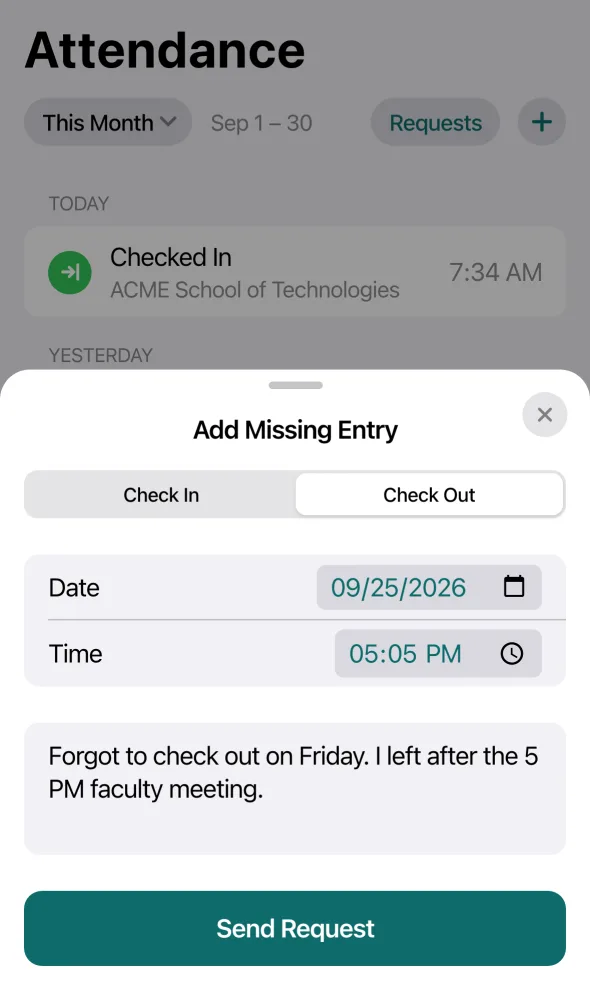
| Add a check-in or check-out that was never recorded | Tap "+", choose "Check In" or "Check Out", set the date and time, give a reason, tap "Send Request". |
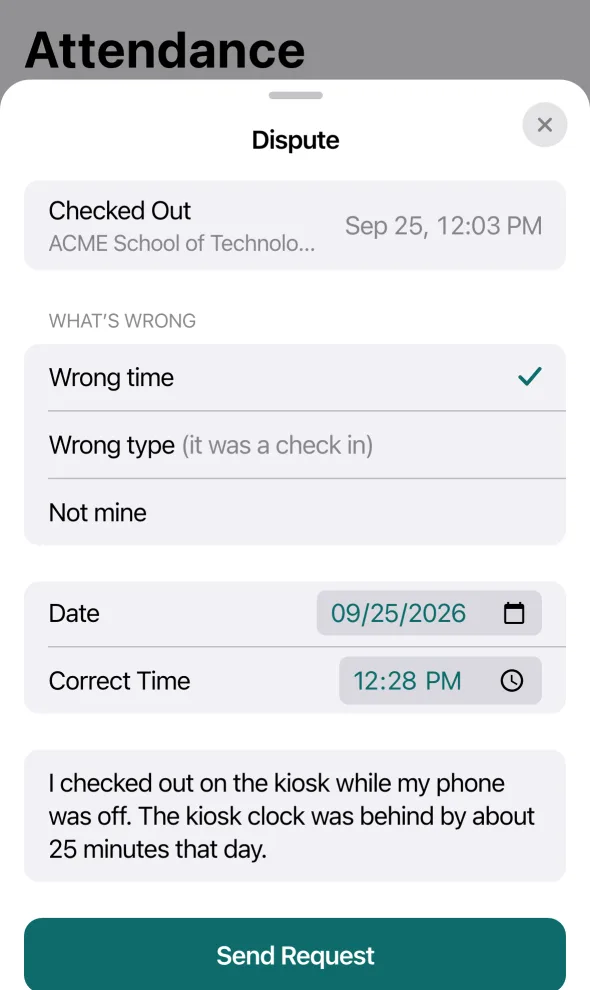
| Fix the time of an entry | Tap the entry, keep "Wrong time", set the "Correct Time", give a reason, tap "Send Request". |
| Fix the type of an entry | Tap the entry and choose "Wrong type (it was a check out)" or "check in". |
| Remove an entry that isn't yours | Tap the entry and choose "Not mine". |
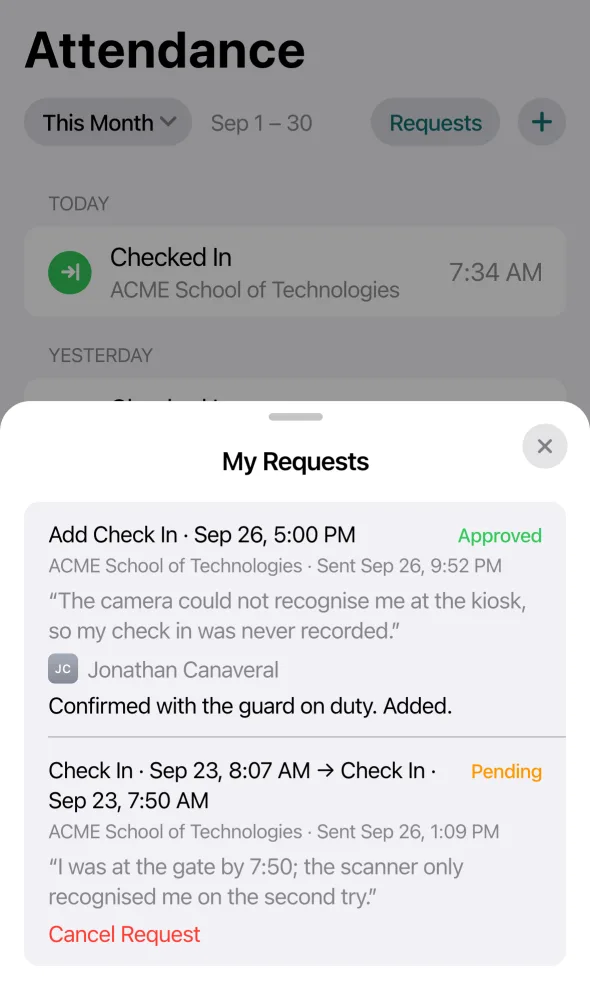
My Requests (the "Requests" pill) lists everything you sent: Pending, Approved, Declined or Cancelled, with who decided and their remarks. It updates live, so a decision shows up while you watch.
To take a request back, tap "Cancel Request" on it in My Requests, or on the entry marked "Pending". Only pending requests can be cancelled.
Read next
- Your attendanceEvery check-in and check-out, grouped by day, with a filter for the range you want to see.
- Attendance records and requestsReview who checked in and out, add an entry that was missed, and decide correction requests.
- Roles and accessMembers, supervisors, managers, admins and Zentril staff, and what each of them can do.