
Getting started
Signing in
Sign in with your Google account; phones open the app, and tablets and desktops open the dashboard if you run an institution.
Zentril uses Google sign-in only. There is no password to remember, and your email comes from your Google account.
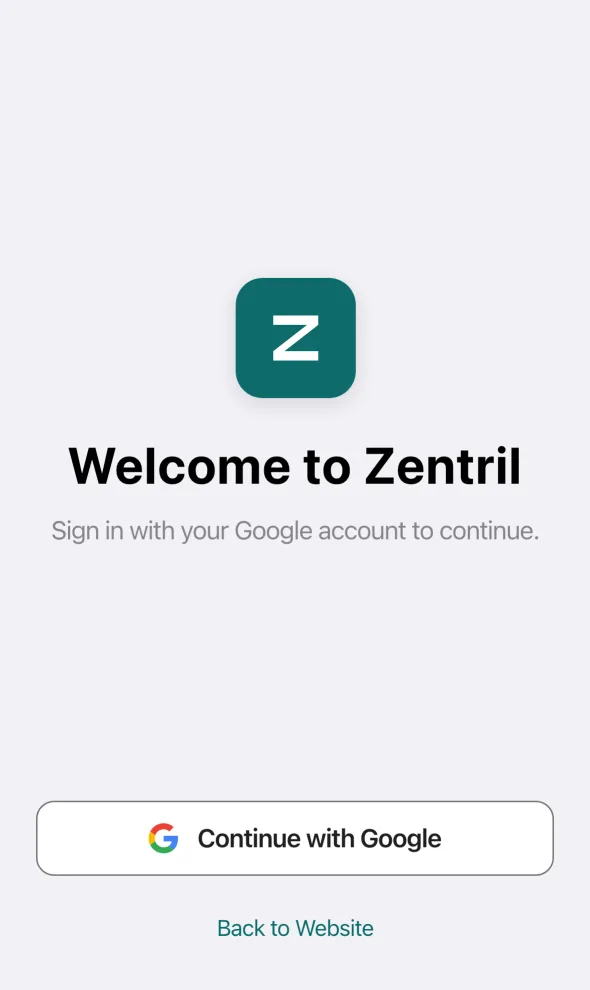
- 1Open Zentril and tap "Continue with Google".
- 2Pick your Google account in the popup.
- 3Wait a moment while Zentril signs you in.
| Device | Where you land |
|---|---|
| Phone | The phone app (or onboarding, the first time) |
| Tablet or desktop, with dashboard access | The dashboard |
| Tablet, without dashboard access | The phone app (or onboarding, the first time) |
| Desktop, without dashboard access | "No Admin Access": open Zentril on your phone instead |
If you see "Your Google account's email address isn't verified", verify the email with Google first. "Google sign-in didn't complete" means the popup was interrupted; just try again.
To sign out on your phone, open Profile and tap "Sign Out". On the dashboard, tap More → "Sign Out" on a phone, or the sign-out button beside your name at the bottom of the sidebar on a tablet or computer.