
For admins and managers
Running schedules
Create Global or Manager schedules, put people on them, decide join requests and delete what is no longer needed.
Schedules is where you create time slots and choose who is on them.
A Global schedule is open to anyone in the institution and is run by admins. A Manager schedule belongs to one manager and their team. Tap a schedule in the list to open it.
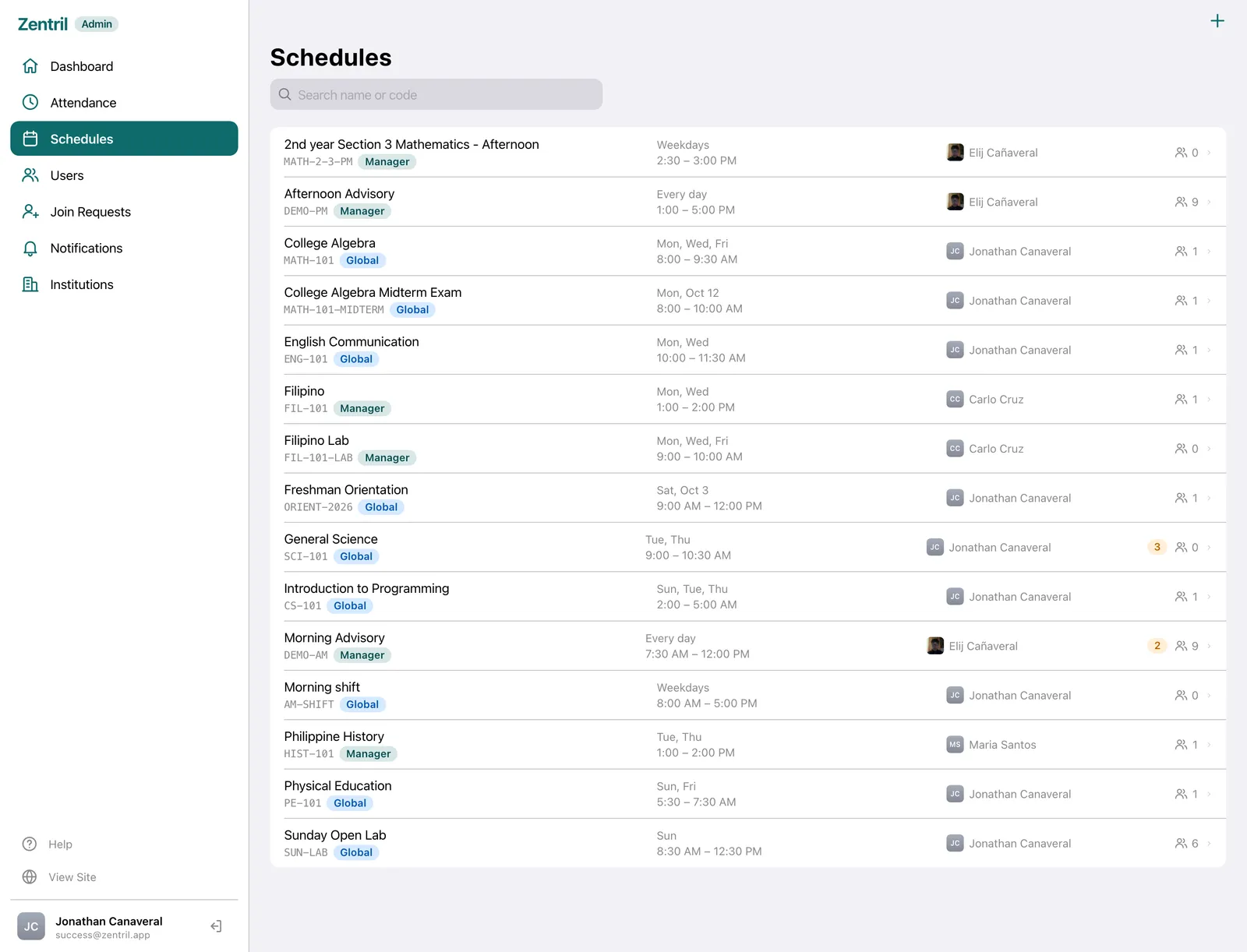
- 1Tap "+" at the top of Schedules.
- 2Choose the "Type": Global (anyone in the institution) or Manager (only you and the people reporting to you).
- 3Enter a "Code" and "Name", pick "Weekly" with days or "Once" with a date, and set "Starts" and "Ends".
- 4Optionally set "Until" for the last day it applies, then tap "Add".
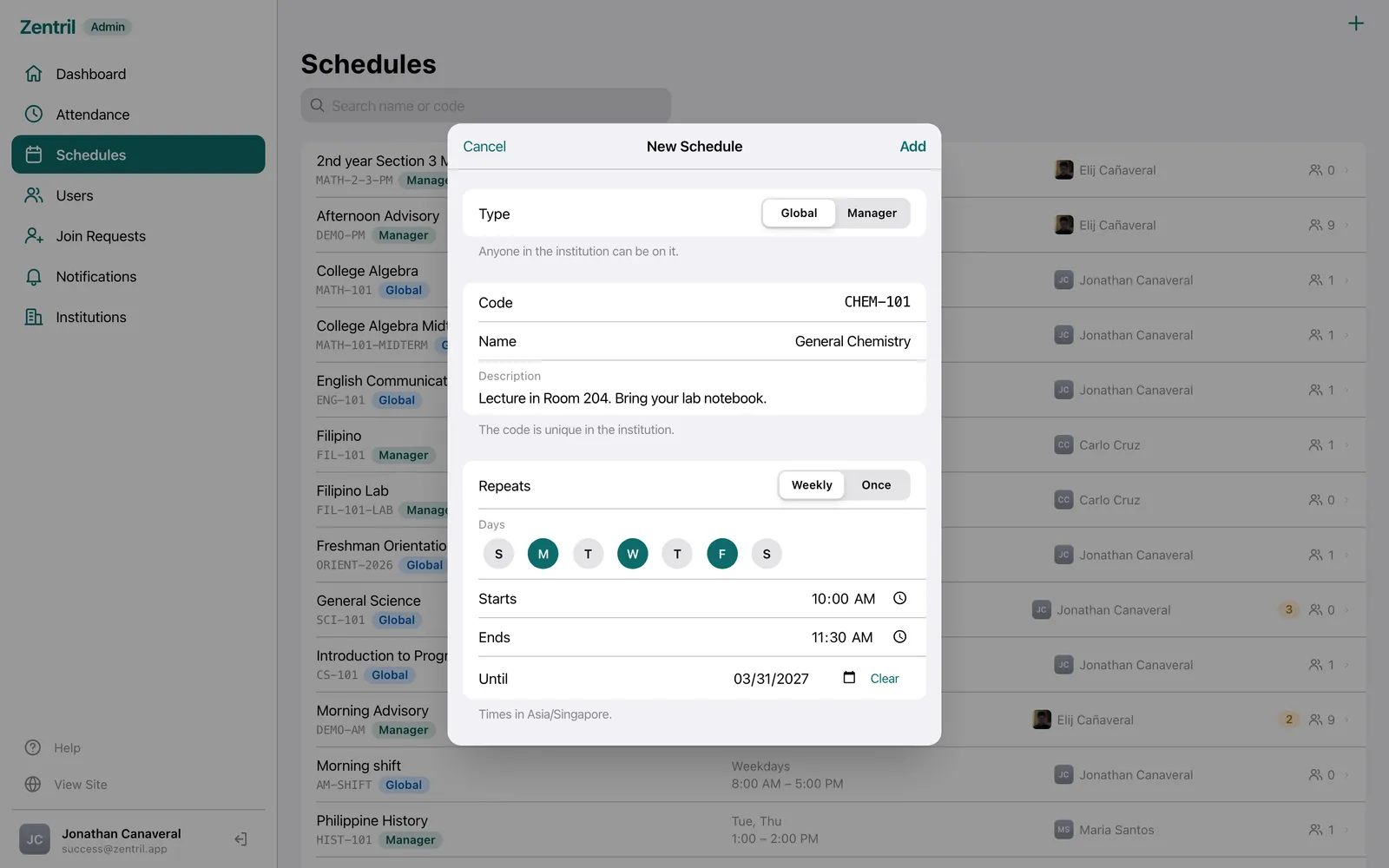
To change it later, open the schedule, tap "Edit Schedule", make your changes and tap "Save". An end time before the start time means the schedule runs overnight.
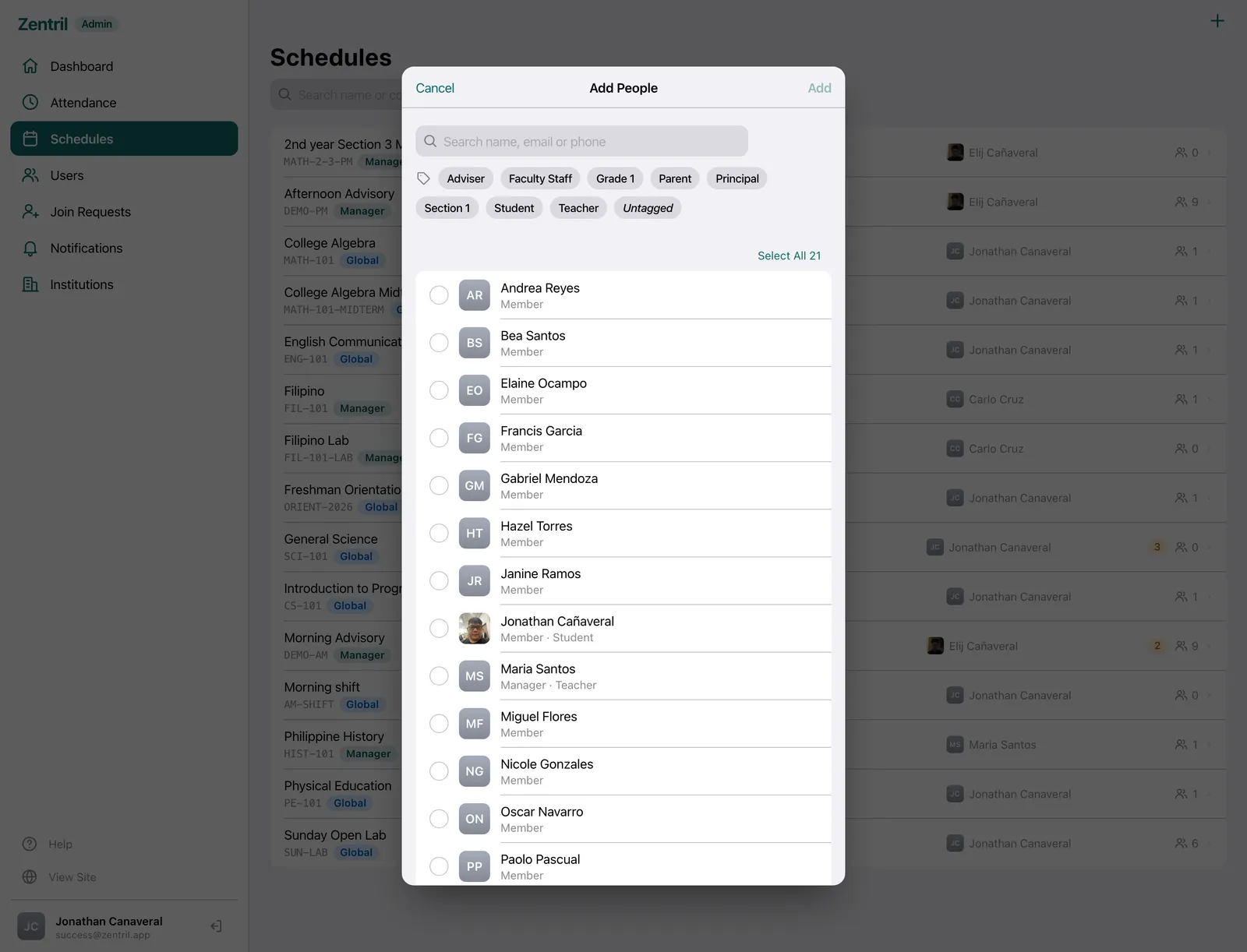
People lists who is on it. Tap "Add People", search or filter by tag, tick people and tap "Add". To take people off, tap "Select", tick them and tap "Remove".
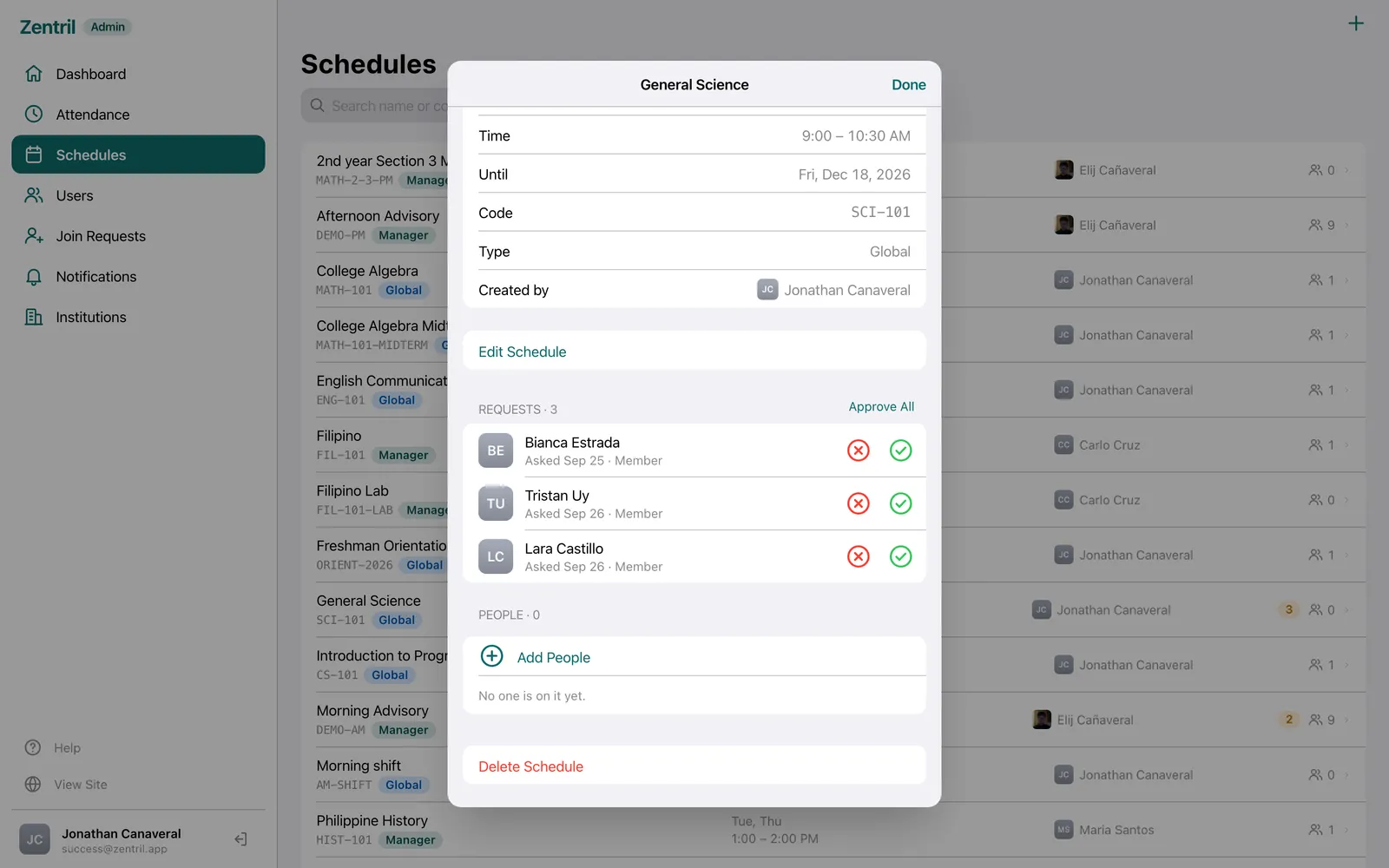
When members ask to join, a "Requests" section appears: tap ✓ to approve, ⊗ to decline, or "Approve All". Declining needs a reason, which the member sees.
| Global | Manager | |
|---|---|---|
| Create | Admins | Managers (the creator is put on it) |
| Edit or delete | Admins | Its manager, or an admin |
| Add or remove people | Admins anyone; a manager only the people they lead | The manager and their reports |
| Decide join requests | Admins | Its manager, or an admin |
Read next
- Your schedulesSee the schedules you are on, ask to join others, and leave one you no longer need.
- Users and managersFind people, set their role, managers and tags, see a manager's reports and open face photos.
- The dashboardFive cards that show your schedule, your people, who is in today and what is waiting for you.