
Support
Signing in as someone else
Staff and admins can use the app as a member to help them; every time is recorded and shown to that person.
Signing in as someone (impersonation) lets you see exactly what they see when you are helping them.
Zentril staff and institution admins start it from Users. Managers can't.
| Who | Can sign in as |
|---|---|
| Zentril staff | Anyone except other staff |
| Institution admin | People who are only in institutions they run, and who aren't admins themselves |
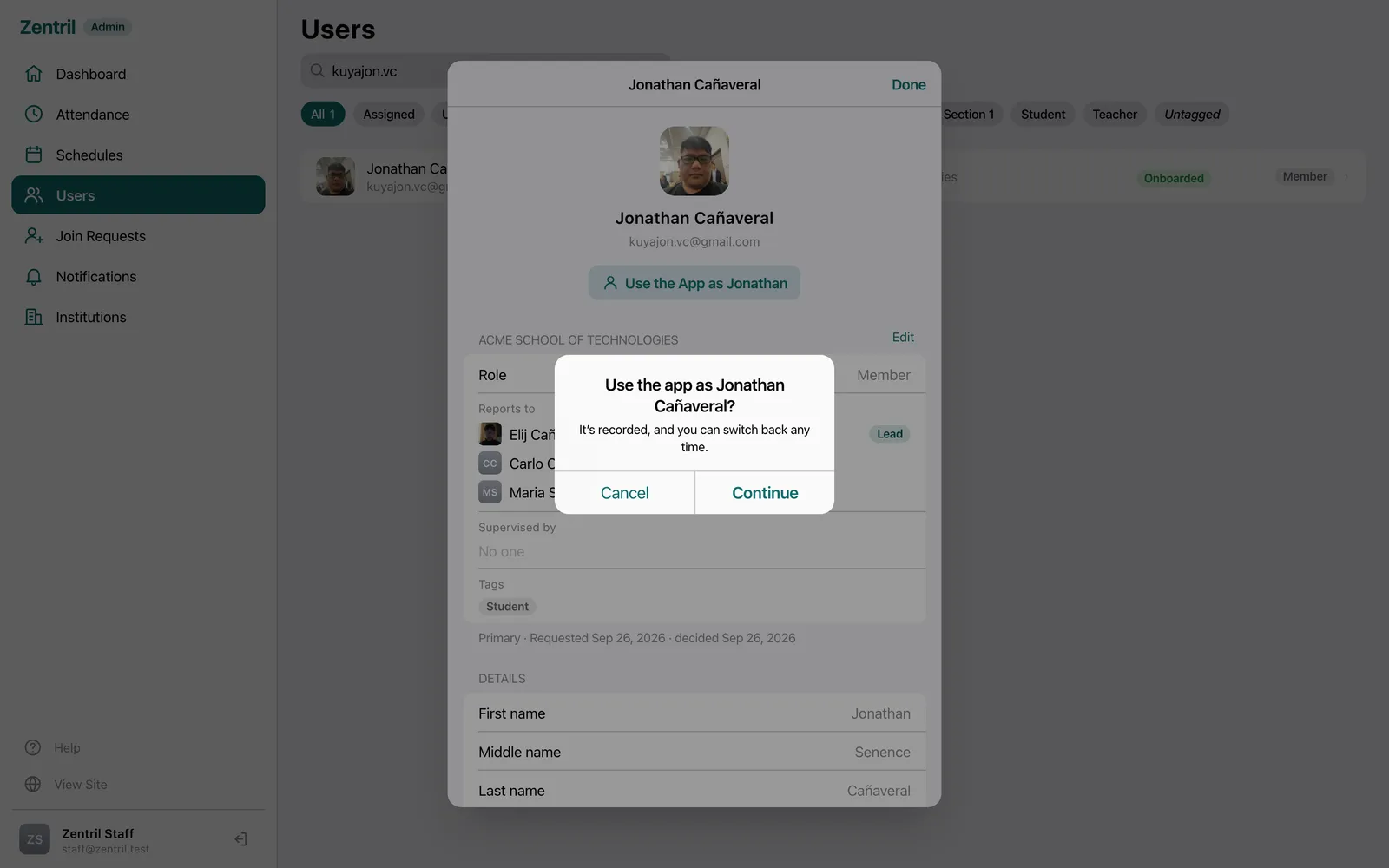
- 1Open the person in Users and tap "Use the App as …" under their name.
- 2Read "Use the app as …? It's recorded, and you can switch back any time." and tap "Continue".
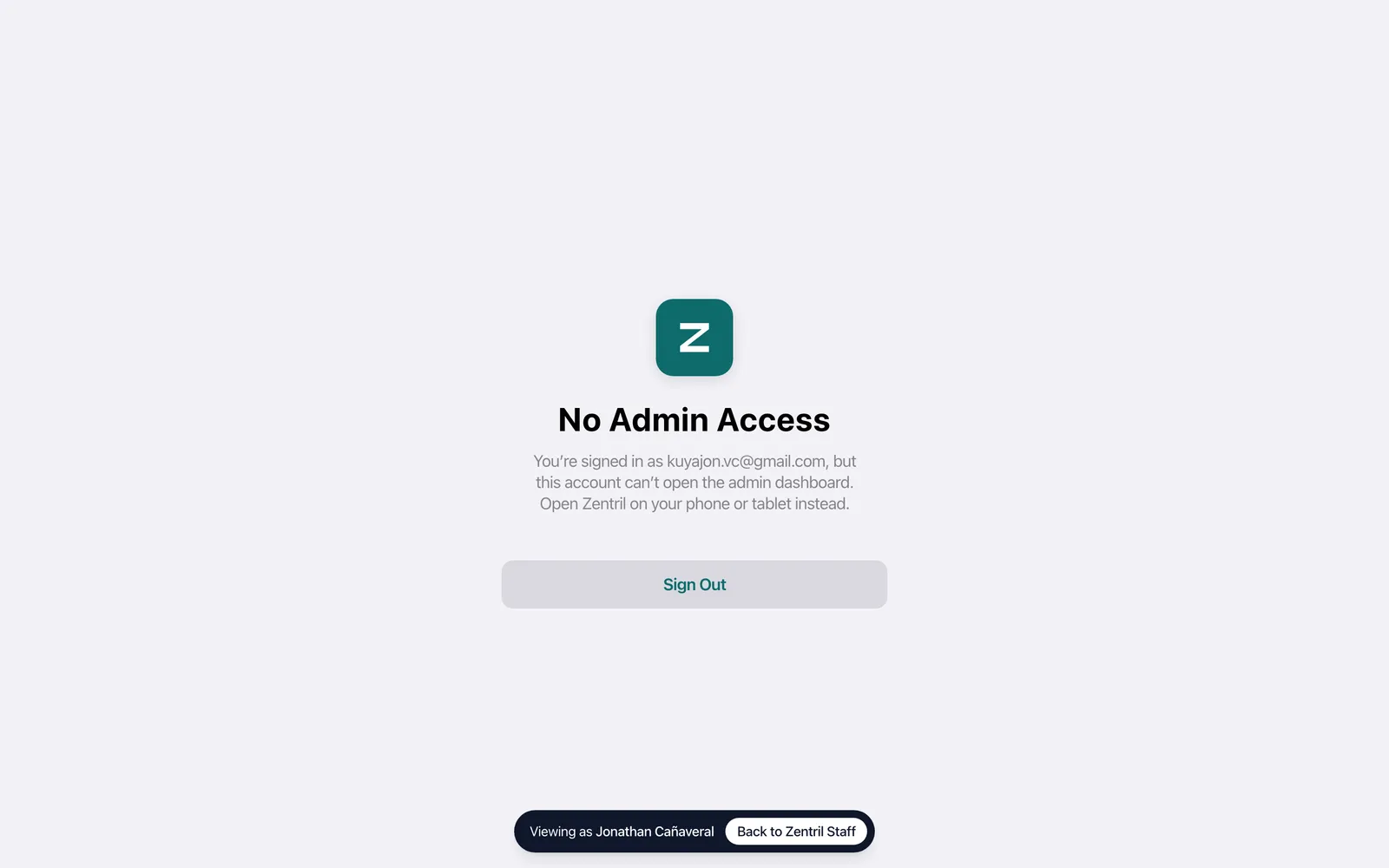
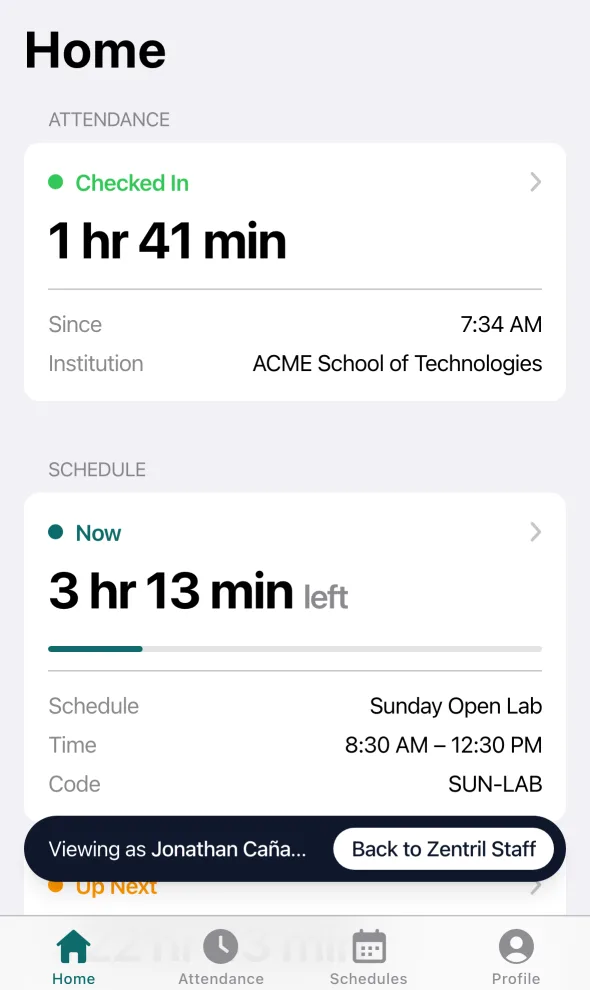
- 3You land where they would: on a phone the app, on a computer the dashboard if they have access, otherwise "No Admin Access".
- 4Tap "Back to …" in the banner at the bottom to return to your own account.
The person gets a notification the moment it starts, and the session is listed in their Profile → Account Access with your name and when it began and ended.
Read next
- Profile and Account AccessYour roles, the install shortcut, and a log of every time someone signed in as you.
- Users and managersFind people, set their role, managers and tags, see a manager's reports and open face photos.
- Roles and accessMembers, supervisors, managers, admins and Zentril staff, and what each of them can do.