
For admins and managers
The dashboard
Five cards that show your schedule, your people, who is in today and what is waiting for you.
The Dashboard is the first page after you sign in on a tablet or desktop. Every card is a link to the page behind it, and each shows only what is in your reach.
On a phone, the tab bar at the bottom has Dashboard, Attendance, Schedules, Users and More. More holds Join Requests, Notifications, Institutions and Institution Map (if you have them), Help, "Back to the App" and "Sign Out". On a tablet or computer, the sidebar on the left holds all of it. If you work in more than one institution (Zentril staff work in all of them), pick the one to work on at the top of the sidebar, or under the Dashboard title on a phone; every page then shows only that institution, and it stays picked next time.
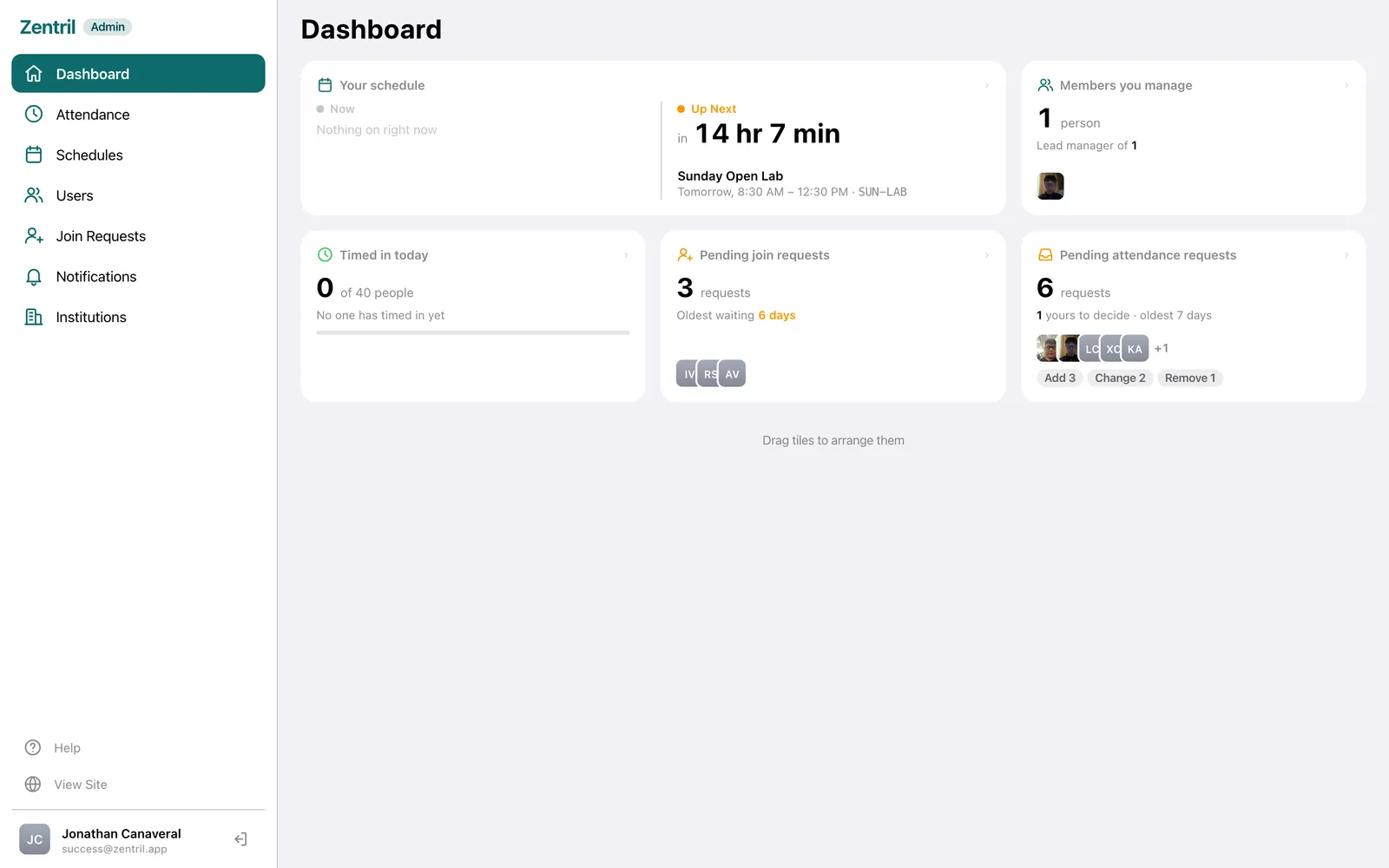
| Card | What it shows |
|---|---|
| Your schedule | The schedule you are on right now with time left, and the next one coming up |
| Members you manage | How many people report directly to you, and for how many you are the lead |
| Timed in today | How many of your people have checked in since midnight, and how many are still in |
| Pending join requests | Requests you may decide, with the oldest waiting time |
| Pending attendance requests | Requests you can see, how many are yours to decide, split into Add, Change and Remove |
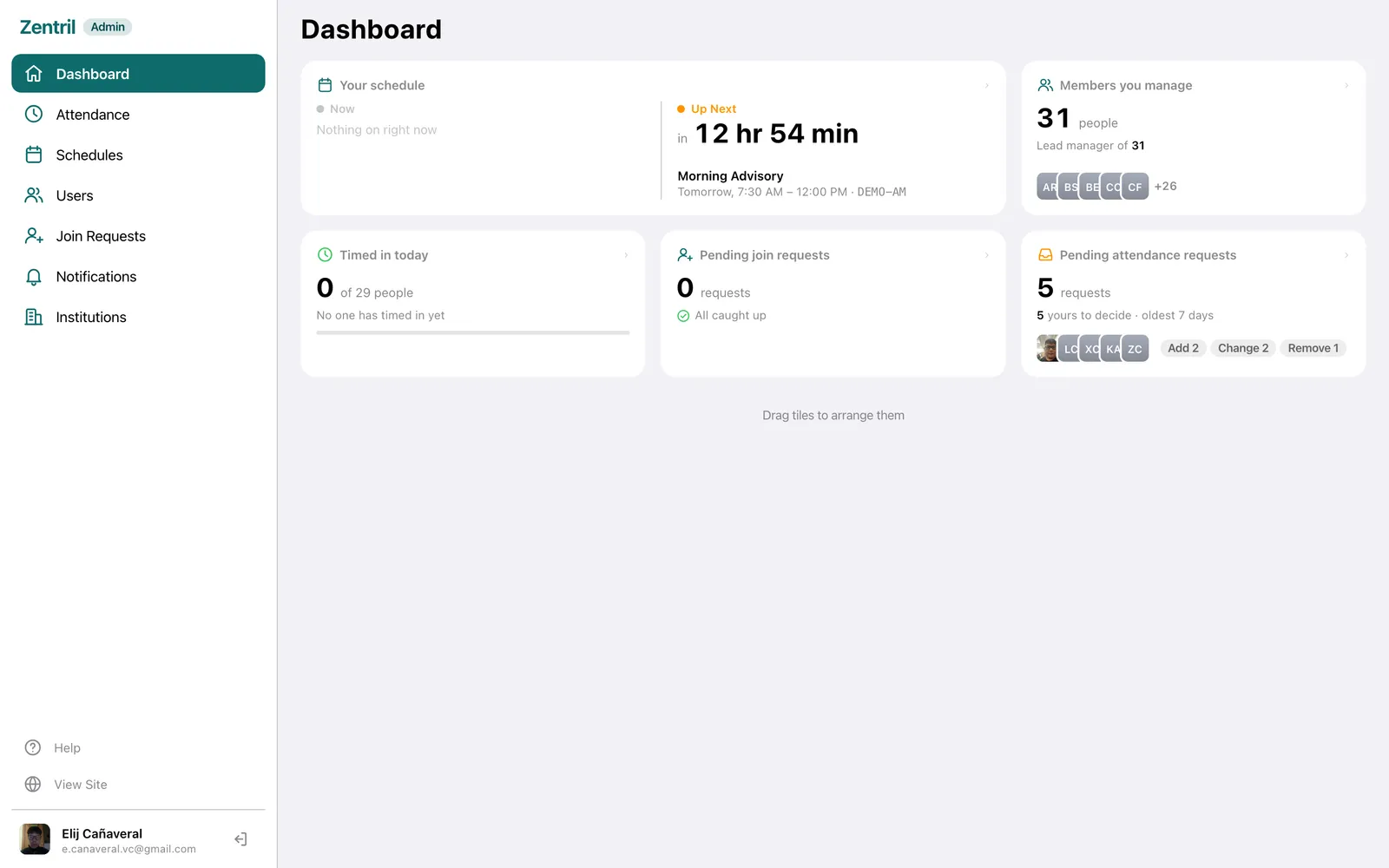
On a computer, drag cards to arrange them, or focus the six-dot handle in a card's corner and use the arrow keys. The order is remembered in that browser.
Read next
- Attendance records and requestsReview who checked in and out, add an entry that was missed, and decide correction requests.
- Join requestsApprove new people with a role, managers and tags, or decline them with a note.
- Running schedulesCreate Global or Manager schedules, put people on them, decide join requests and delete what is no longer needed.