
For admins and managers
Join requests
Approve new people with a role, managers and tags, or decline them with a note.
When someone enters your institution's code, they appear in Join Requests. They can already use the phone app; approving gives them their role and place in the institution.
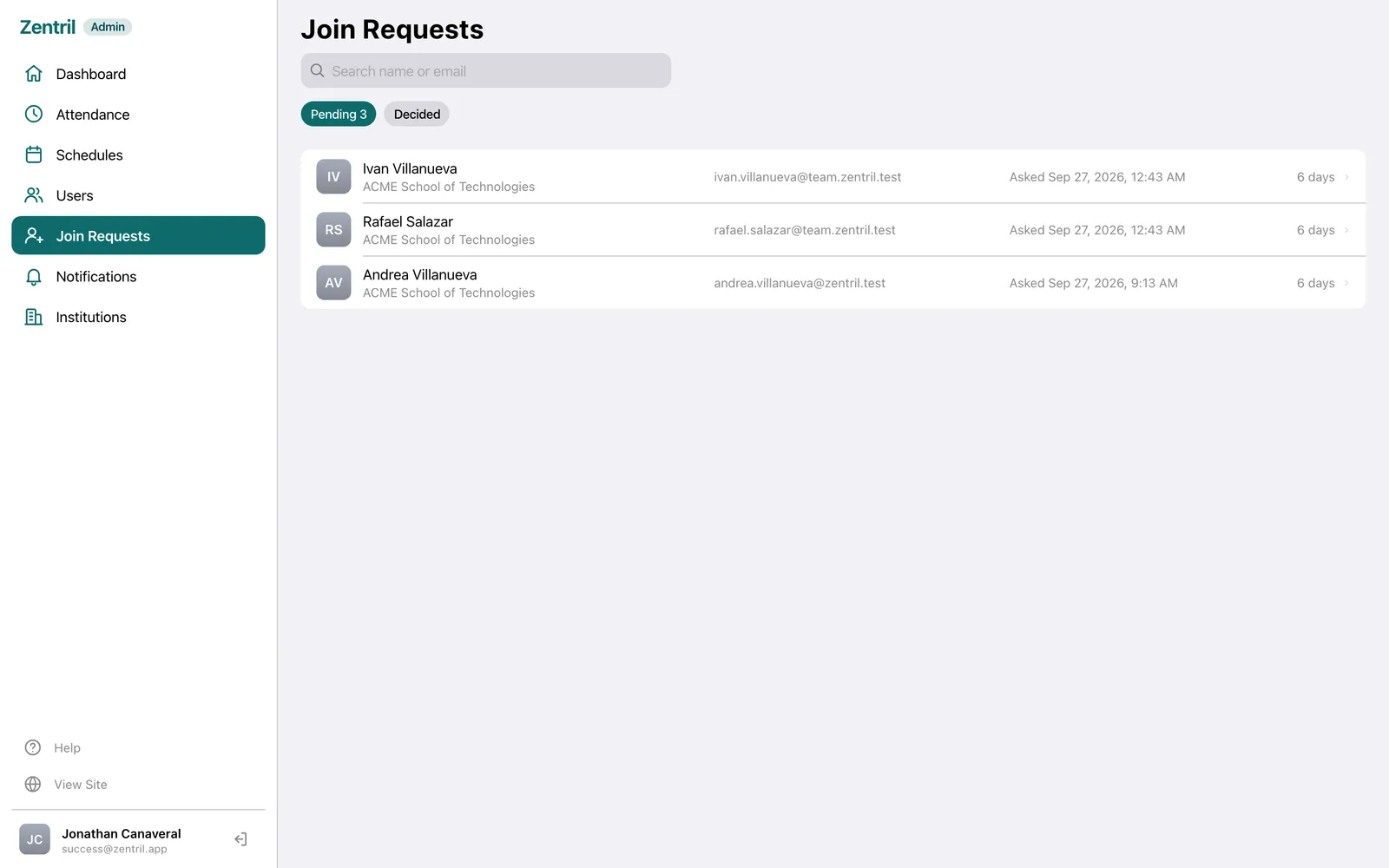
On a phone, Join Requests is under More.
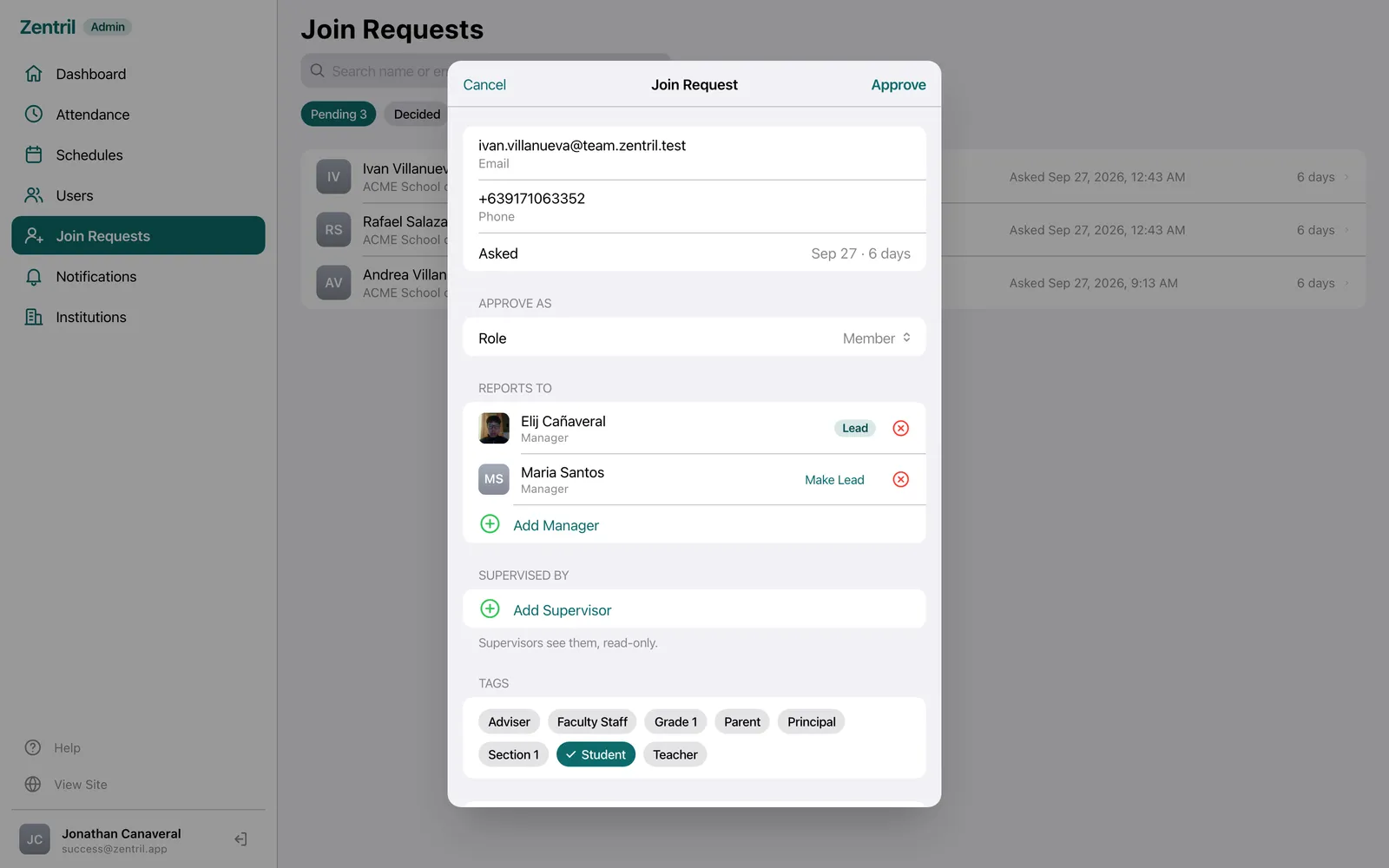
- 1Tap the request to open it.
- 2Pick the "Role" (it starts on the role they asked for).
- 3Under "Reports to", tap "Add Manager" and choose their managers. The first becomes "Lead". Add supervisors under "Supervised by".
- 4Tap any "Tags". For a Manager, turn on "Can send notifications" if they should send notifications.
- 5Add "Remarks" if you like and tap "Approve" at the top of the sheet.
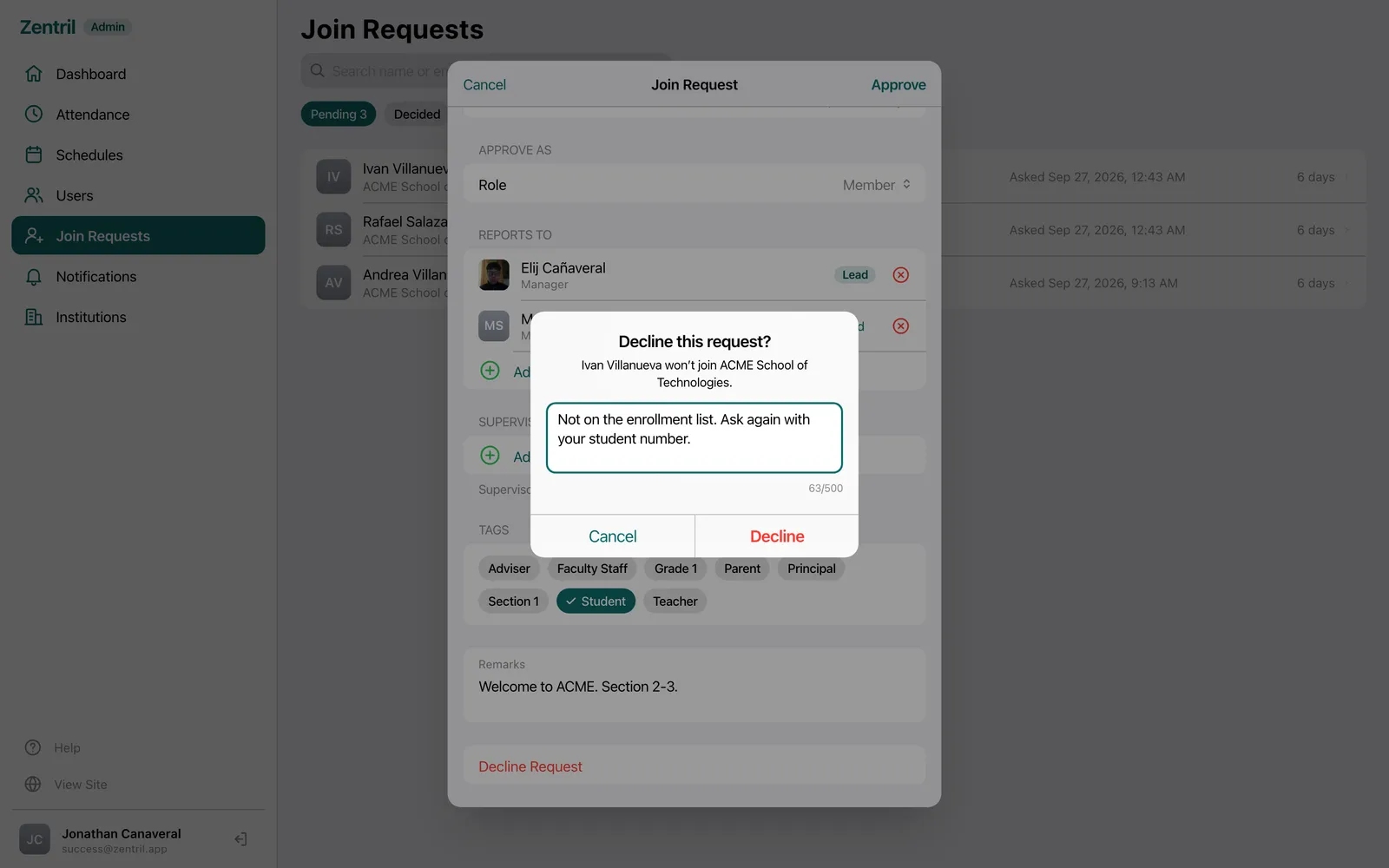
To decline, open the request, tap "Decline Request" at the bottom, add a reason if you like, and tap "Decline". The person returns to the code screen and can ask again.
Switch to "Decided" for the history: who was approved with which role and managers, and who was declined. Tap one to see the details.
Read next
- Joining an institutionEnter your institution's code, scan your face and check your details, then wait for approval.
- Users and managersFind people, set their role, managers and tags, see a manager's reports and open face photos.
- The dashboardFive cards that show your schedule, your people, who is in today and what is waiting for you.