
For members
Profile and Account Access
Your roles, the install shortcut, and a log of every time someone signed in as you.
The Profile tab shows your photo, name and email, then a row per role: each institution with your role and who you report to, or "Waiting for approval" while a join request is pending.
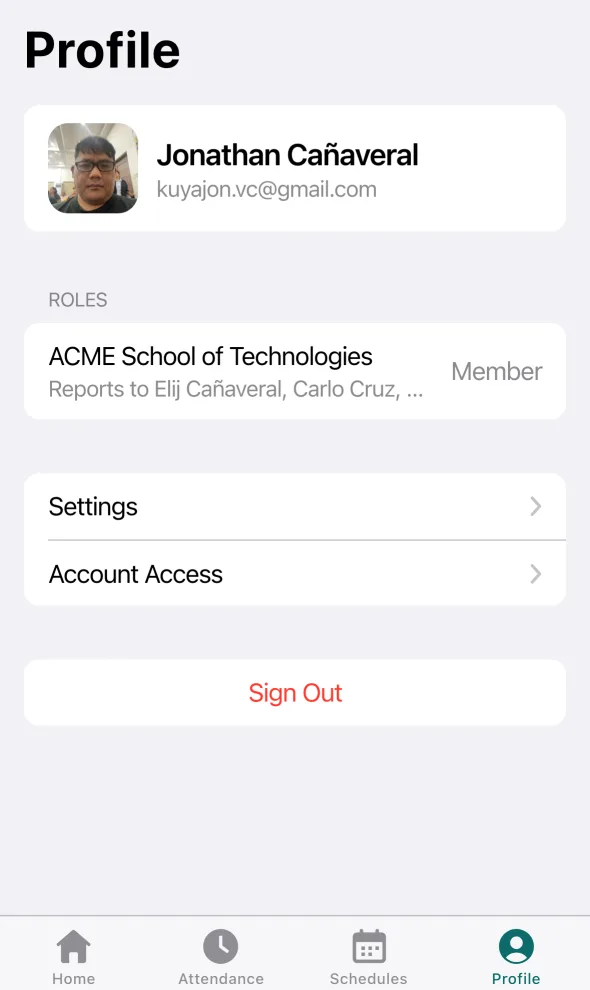
| Row | What it does |
|---|---|
| "Admin Dashboard" | Opens the dashboard (only for admins, managers, supervisors, anyone with people reporting to them, and Zentril staff) |
| "Add to Home Screen" | Opens the install guide (shown until the app is installed) |
| "Settings" | Reserved for future options |
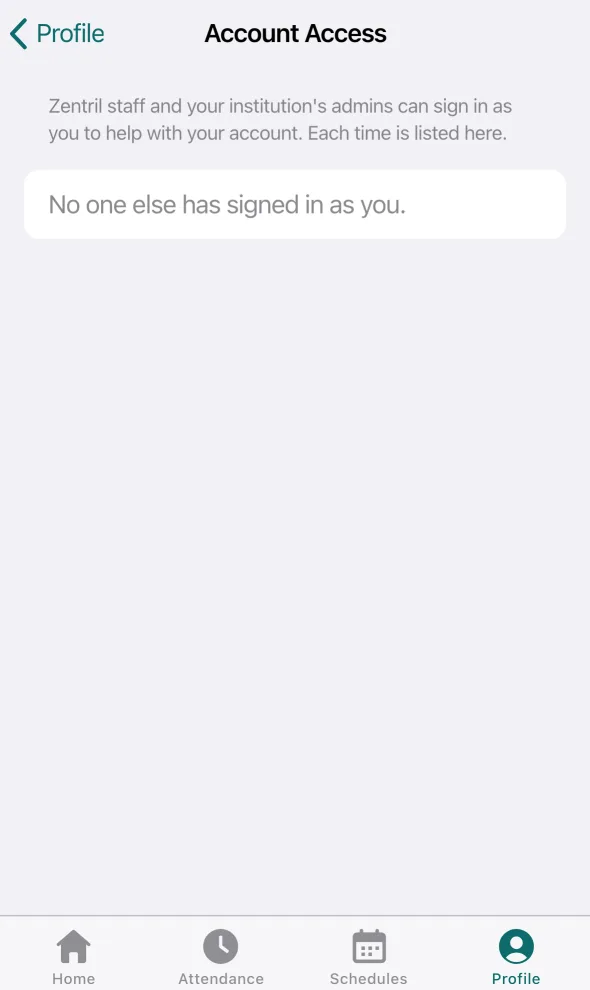
| "Account Access" | Lists every time someone else signed in as you |
| "Sign Out" | Signs you out right away, with no confirmation |
Zentril staff and your institution's admins can sign in as you to help with your account. Account Access shows who, when it started and when it ended, newest first. You also get a notification when it starts.
Read next
- Signing in as someone elseStaff and admins can use the app as a member to help them; every time is recorded and shown to that person.
- Install on your phoneAdd Zentril to your Home Screen so it opens full screen in one tap.
- Roles and accessMembers, supervisors, managers, admins and Zentril staff, and what each of them can do.