For admins and managers
Sending notifications
Text a notice to the people you choose, now, later or on repeat until it expires.
In Notifications you write a short notice and pick who gets it. Your institution's on-prem app texts it to each person, and it shows in their Notifications tab.
- WritePick people and write the message
- PendingWaits until it's due
- SentThe on-prem app texts it and marks it sent
- SeenIt shows in their phone app
| Who | Can send to |
|---|---|
| Admin | Anyone approved in their institution |
| Manager, if an admin allows it | The people who report to them |
| Zentril staff | Anyone in any institution |
| Supervisor, member | No one |
- 1Tap the paper plane at the top of Notifications (on a phone, Notifications is under More).
- 2Write the message. The counter shows how much of one SMS you have used.
- 3Under "When", choose "Now" or "Later" (then set "Starts").
- 4To repeat it, choose "Repeat", then set "Every" and "Until".
- 5Under "Recipients", search or tap tags to narrow the list. Tap people, or "Select All N" to take everyone who matches.
- 6Check the summary line, tap "Send" or "Schedule" at the top of the sheet, and confirm.
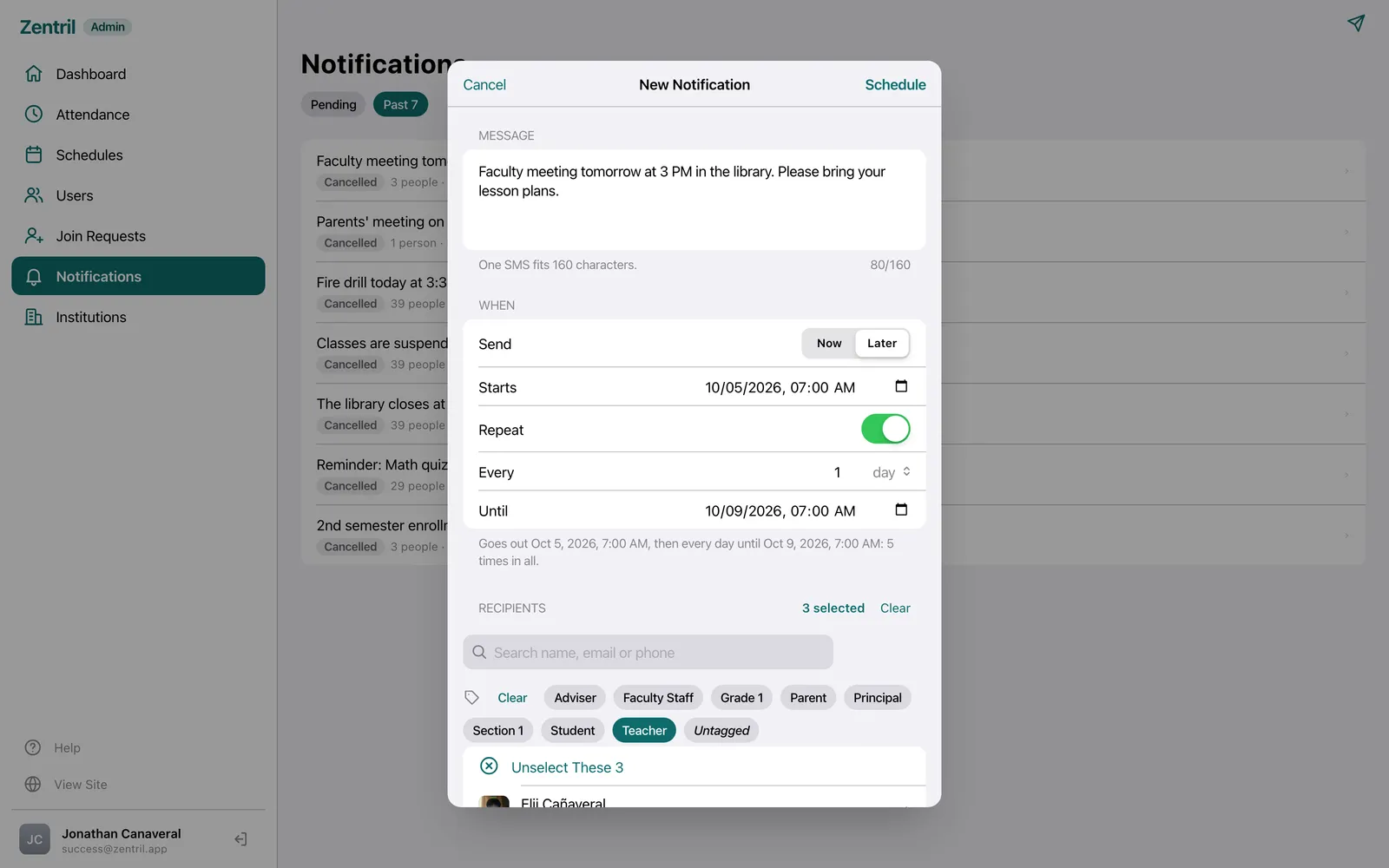
A message fits one SMS: 160 characters, or 70 if it has an emoji or other special characters. Curly quotes and long dashes are changed to plain ones so they don't count against you.
Pending keeps every notification with a text still to go out. Past keeps the ones fully sent or cancelled. Tap one to see its schedule, how many got it and how many have seen it.
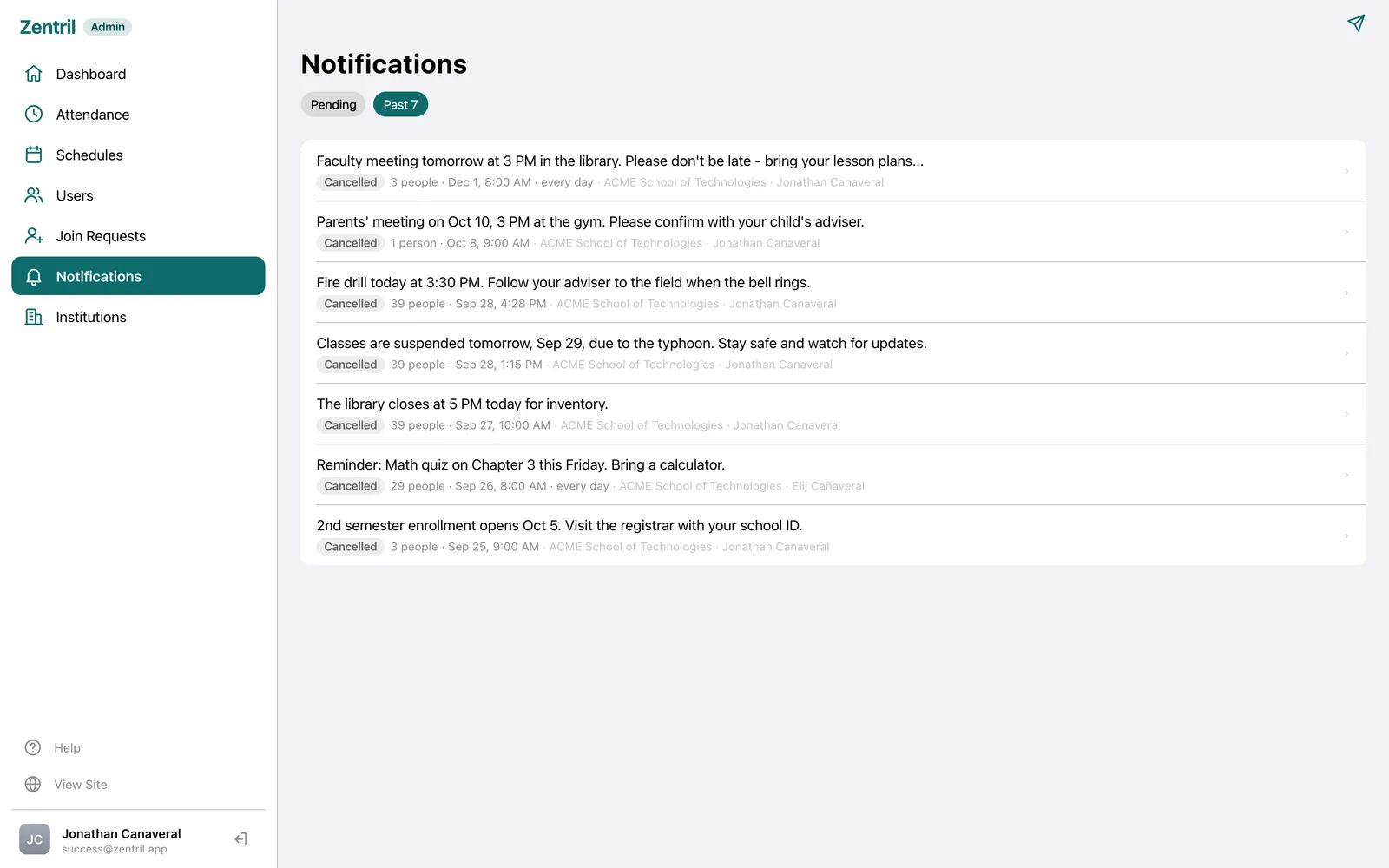
| Status | Meaning |
|---|---|
| Pending | It is due; the on-prem app sends it when it next syncs |
| Scheduled | Its time hasn't come yet |
| Repeating | Sent some times, with more to come ("Sent 3 of 7") |
| Sent | Every text has gone out |
| Cancelled | Stopped before all of it went out |
Open one that hasn't gone out and tap "Cancel Notification": no one gets it. On a repeating one that has started, "Stop Notification" ends it; the times already sent stay with people. The sender, the institution's admins and Zentril staff can do this.
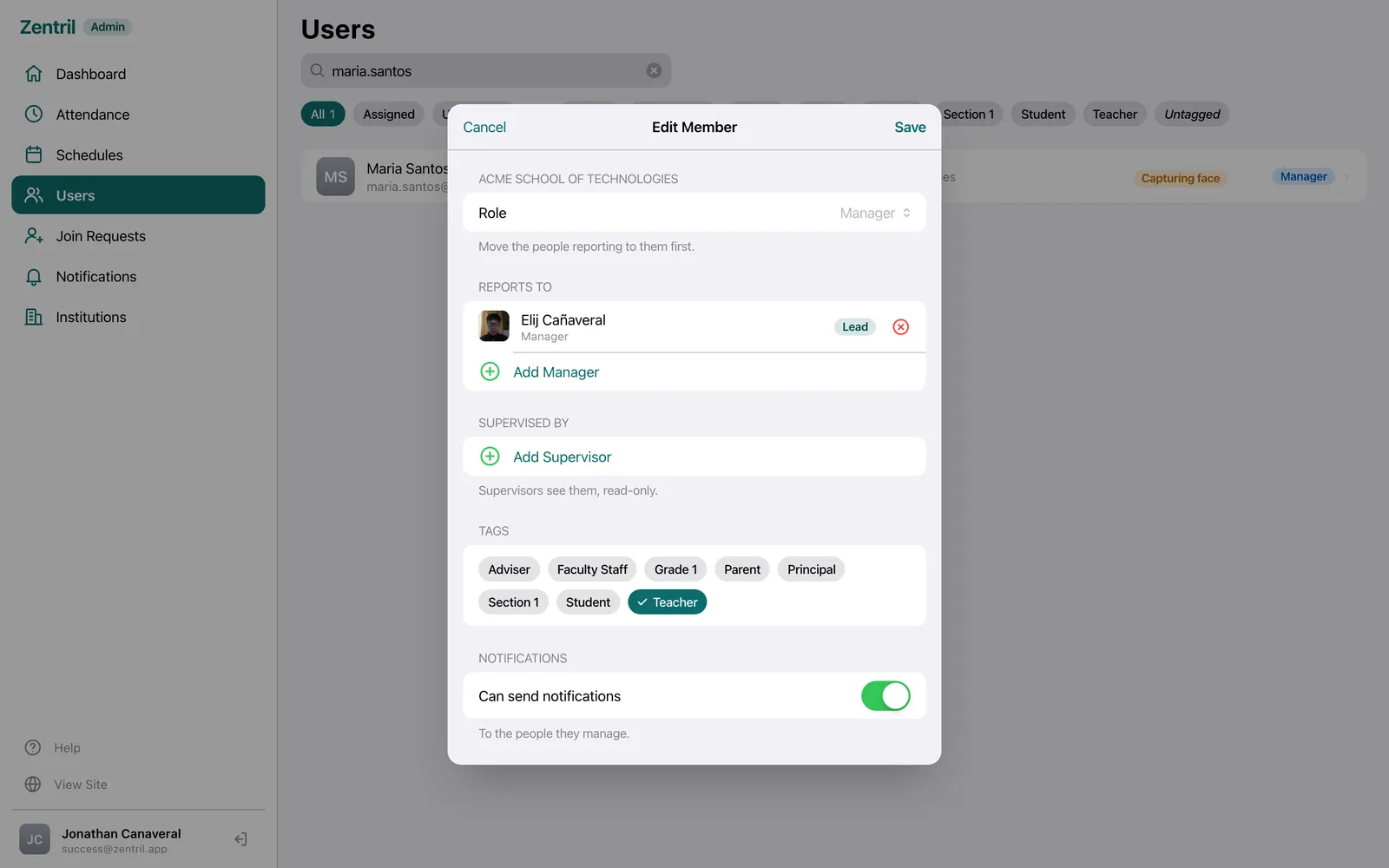
To let a manager send, open them in Users, tap "Edit" and turn on "Can send notifications". The same switch appears when you approve a join request as a Manager.