
For admins and managers
Institution settings
The enrollment code, description, user tags, location and timezone, all saved as you type.
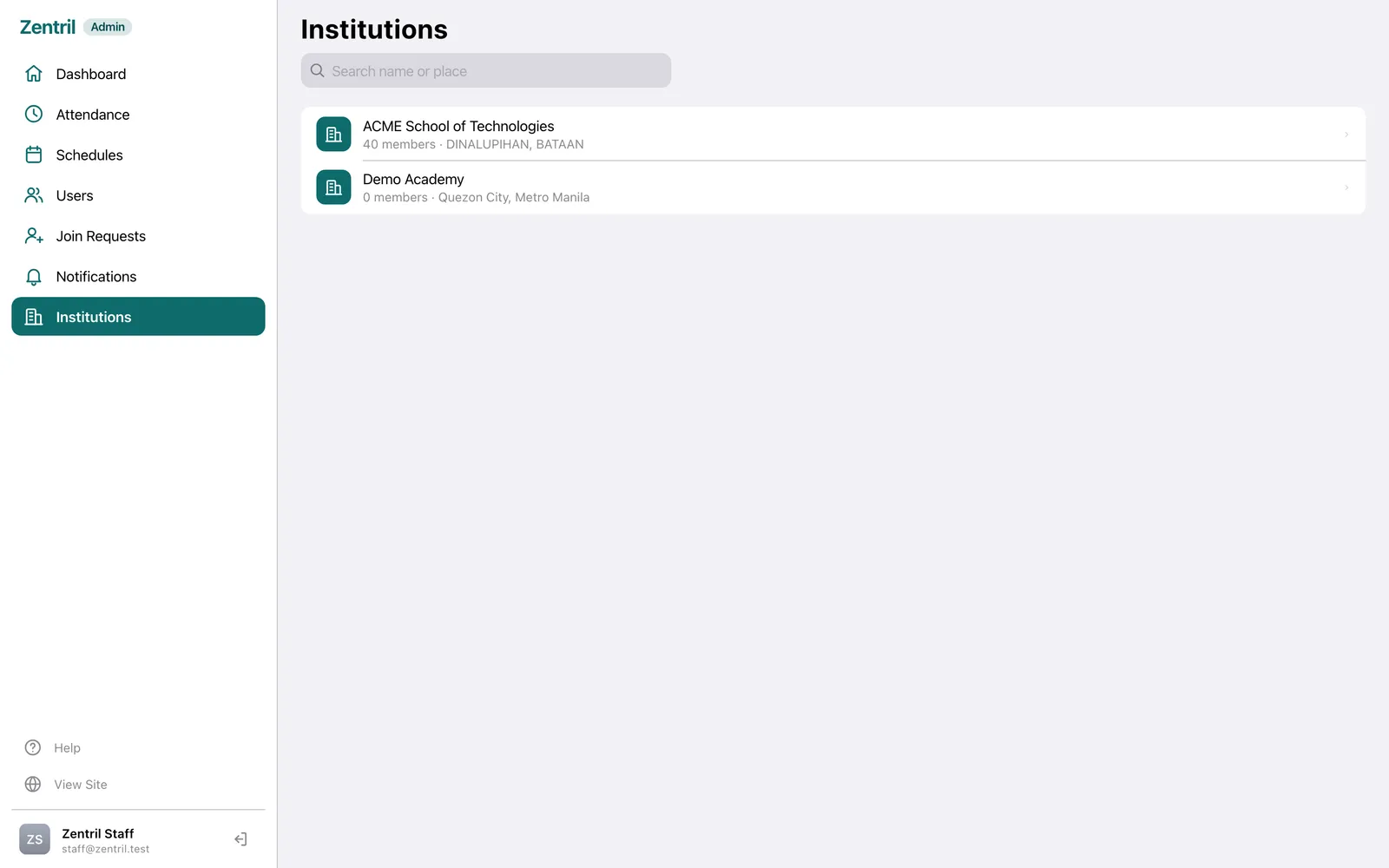
Institutions is where admins set up their institution (on a phone, it is under More). Zentril staff pick one from a list first; an admin of a single institution opens it straight away. A "Settings | Members" switch sits at the top.
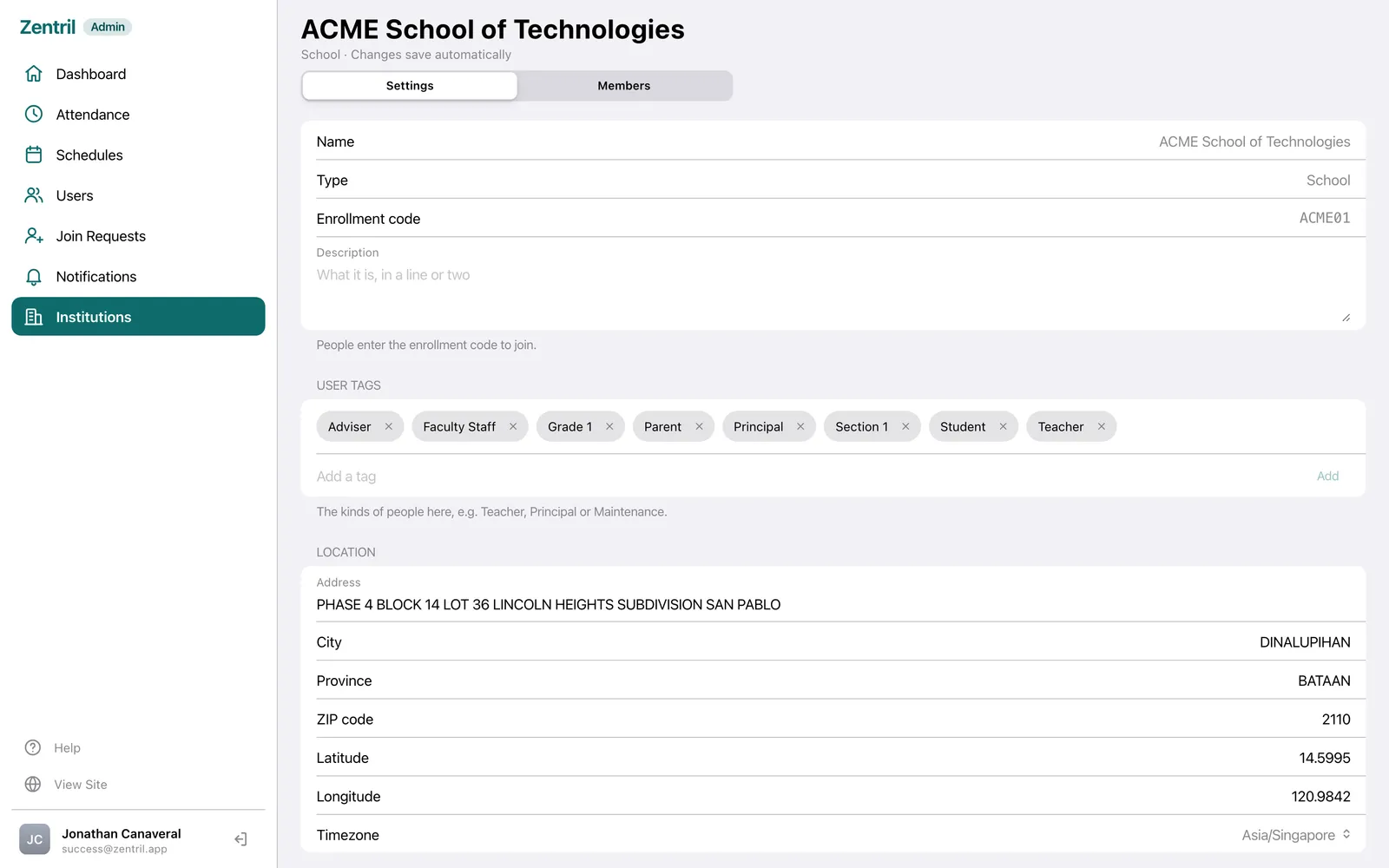
| Section | What is there |
|---|---|
| Details | Name and type (fixed), the "Enrollment code" people enter to join, and a description |
| User tags | Labels like Teacher, Principal or Maintenance that you attach to people |
| Location | Address, city, province, ZIP, coordinates and the timezone |
| Legal | The terms that go into the agreements people sign when they join |
- 1Type a tag name in "Add a tag" and tap "Add" or press Enter.
- 2Attach it to people in Users or Members, or when approving a join request.
- 3Tap × on a tag to remove it. It is removed from everyone who had it.
There is no Save button. The line under the name reads "Changes save automatically", then "Saving…", then "All changes saved". If someone else saved in between, you are asked to reload.
Members lists the institution's people, with search and tag filters. Tap someone to change their role, managers, tags and notifications, or to move the people who report to them to another manager.
Read next
- Users and managersFind people, set their role, managers and tags, see a manager's reports and open face photos.
- Joining an institutionEnter your institution's code, scan your face and check your details, then wait for approval.
- Running schedulesCreate Global or Manager schedules, put people on them, decide join requests and delete what is no longer needed.