For admins and managers
Users and managers
Find people, set their role, managers and tags, see a manager's reports and open face photos.
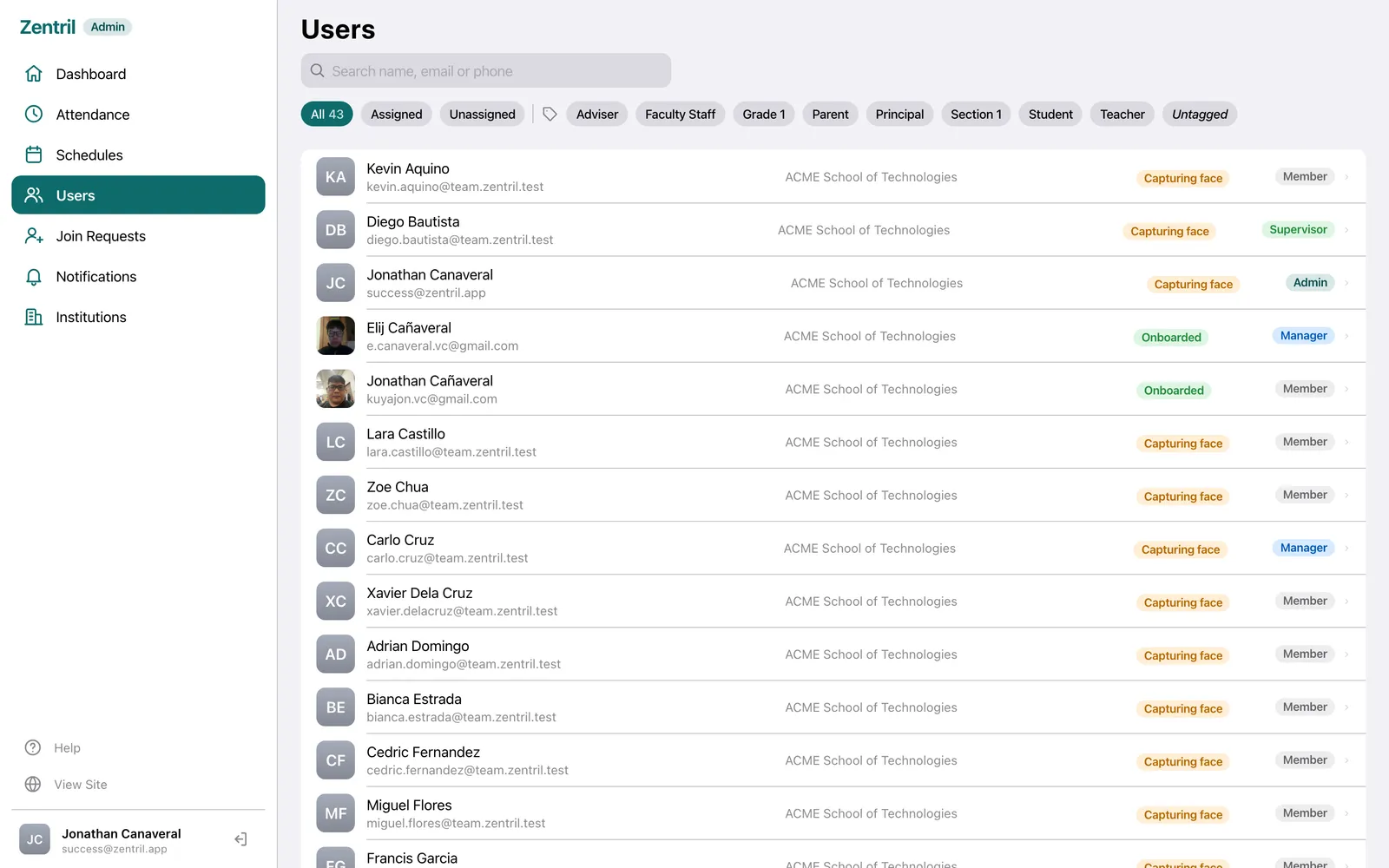
Users is where you find people and set their role, managers and tags.
| You are | You see |
|---|---|
| An institution admin | Everyone in your institution, approved or not |
| A manager or supervisor | The people who report to you |
| Zentril staff | Everyone |
Search by name, email or phone. Admins can also filter by tag, or by "All", "Assigned" and "Unassigned" (whether the person has a manager yet). More people load as you scroll.
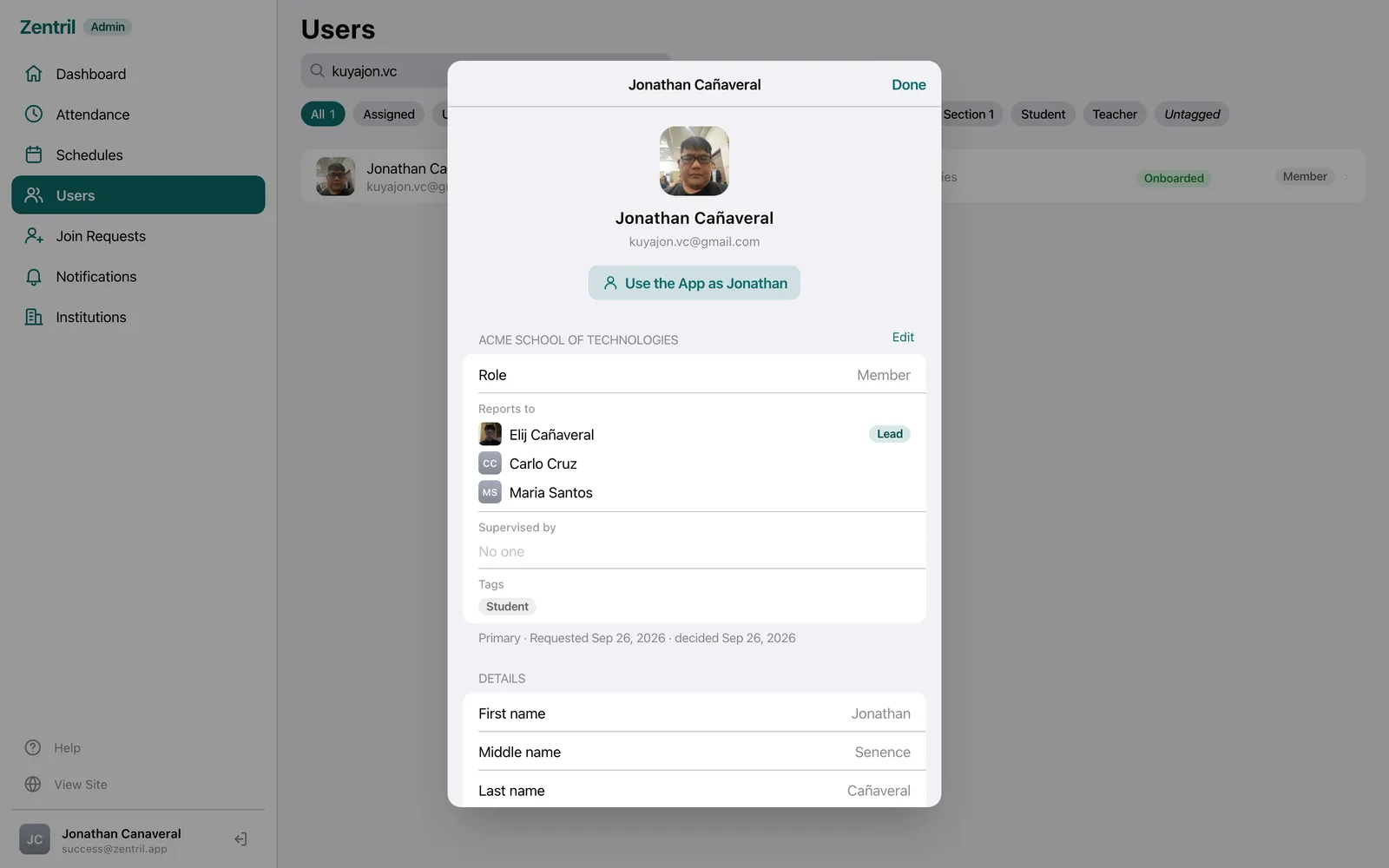
Tap someone to open their sheet: each institution with their role, who they report to, who supervises them and their tags, then Details (contact and join date), Onboarding (the checklist) and the five face photos. Tap "Done" to close it.
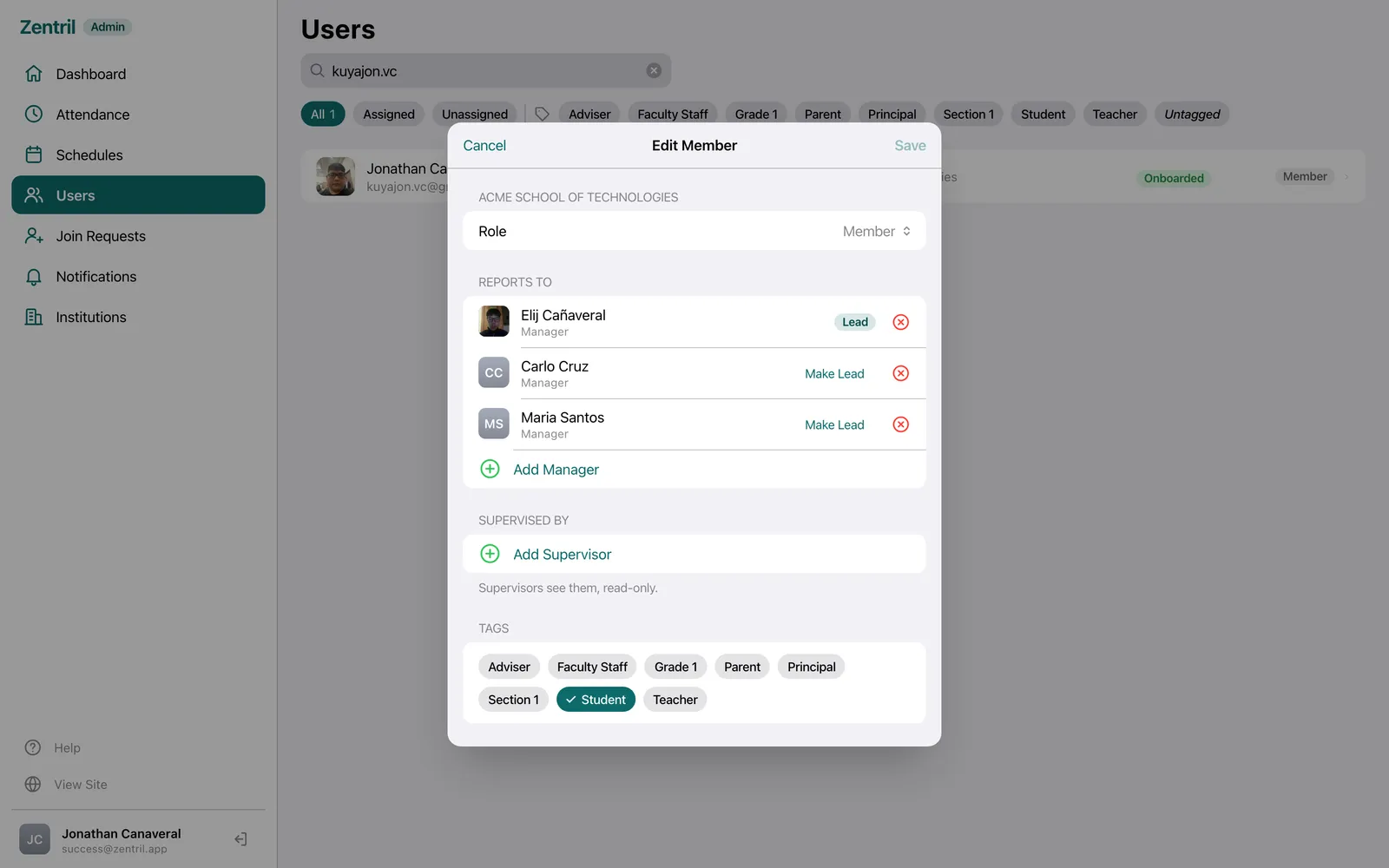
- 1Open the person and tap "Edit" beside the institution.
- 2Choose the "Role": Member, Supervisor, Manager or Admin.
- 3Under "Reports to", tap "Add Manager" to add managers. The first one becomes "Lead"; tap "Make Lead" on another to change it, or the red ⊗ to remove one.
- 4Under "Supervised by", tap "Add Supervisor" for anyone who should only look on.
- 5Tap the institution's tags to toggle them.
- 6For a Manager, turn on "Can send notifications" under "Notifications" to let them send notifications.
- 7Tap "Save".
Someone can have several managers, but only one lead: the adviser who sees their attendance and decides their requests. Supervisors are listed apart, see the person read-only and are never the lead. With managers but no lead, admins decide that person's attendance requests.
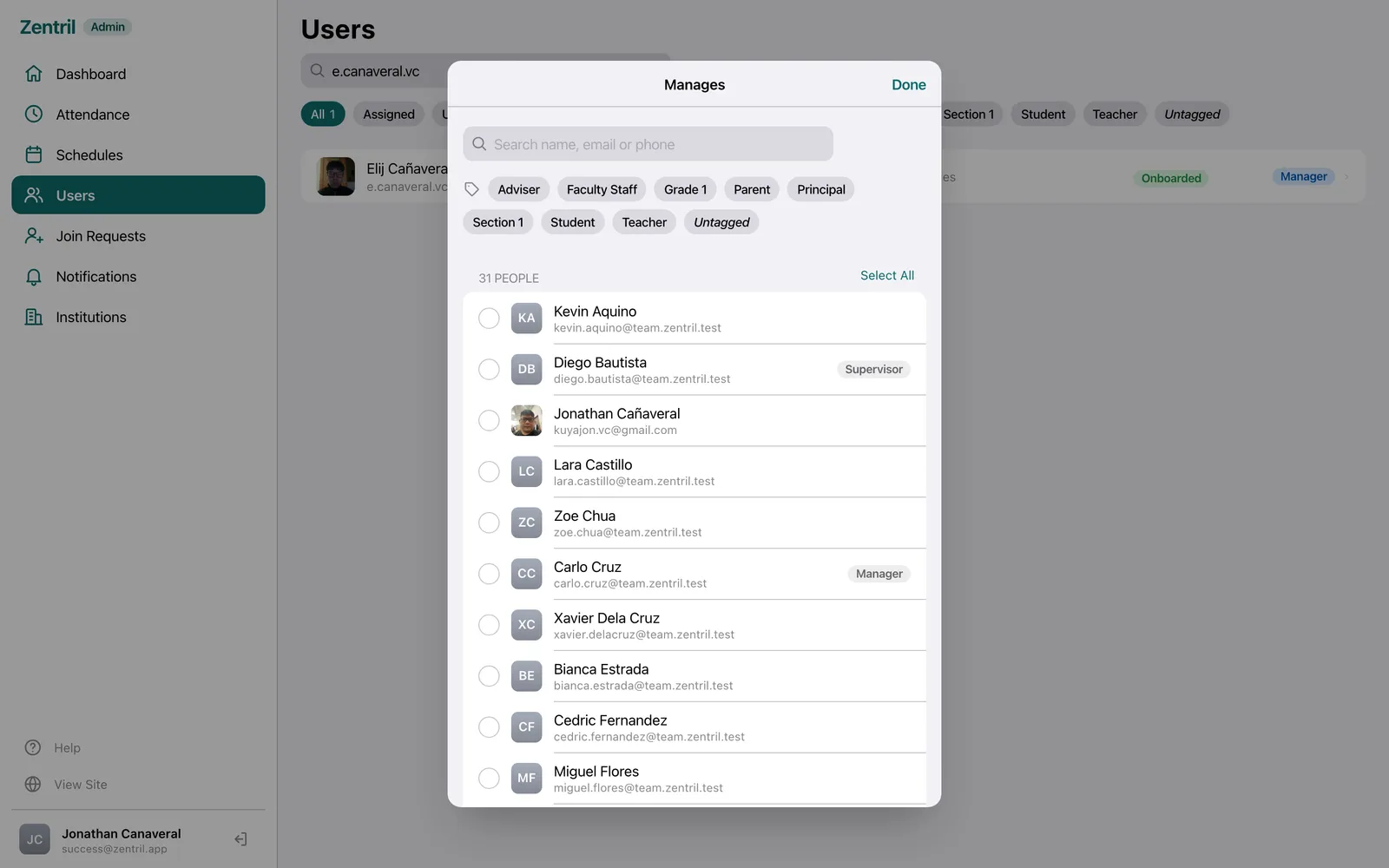
Tap "Manages" to see a manager's reports. Admins can tick people (or "Select All") and use "Reassign…" to move them to another manager, or "Unassign" to take this manager off them. A manager can always be given a higher role, but a lower one only after their reports have been moved, so move the reports first. Admins can do the same from Institutions → "Members".